Slow Boot Times
If your computer takes a long time to start Windows or reach the desktop, an older hard drive may be limiting system responsiveness.
B L ENTERPRISES • JAIPUR
Upgrade your laptop or desktop to faster storage with B L Enterprises. We provide HDD-to-SSD upgrades, SATA SSD installation, NVMe SSD upgrades, storage expansion, data migration, and system setup for compatible computers.
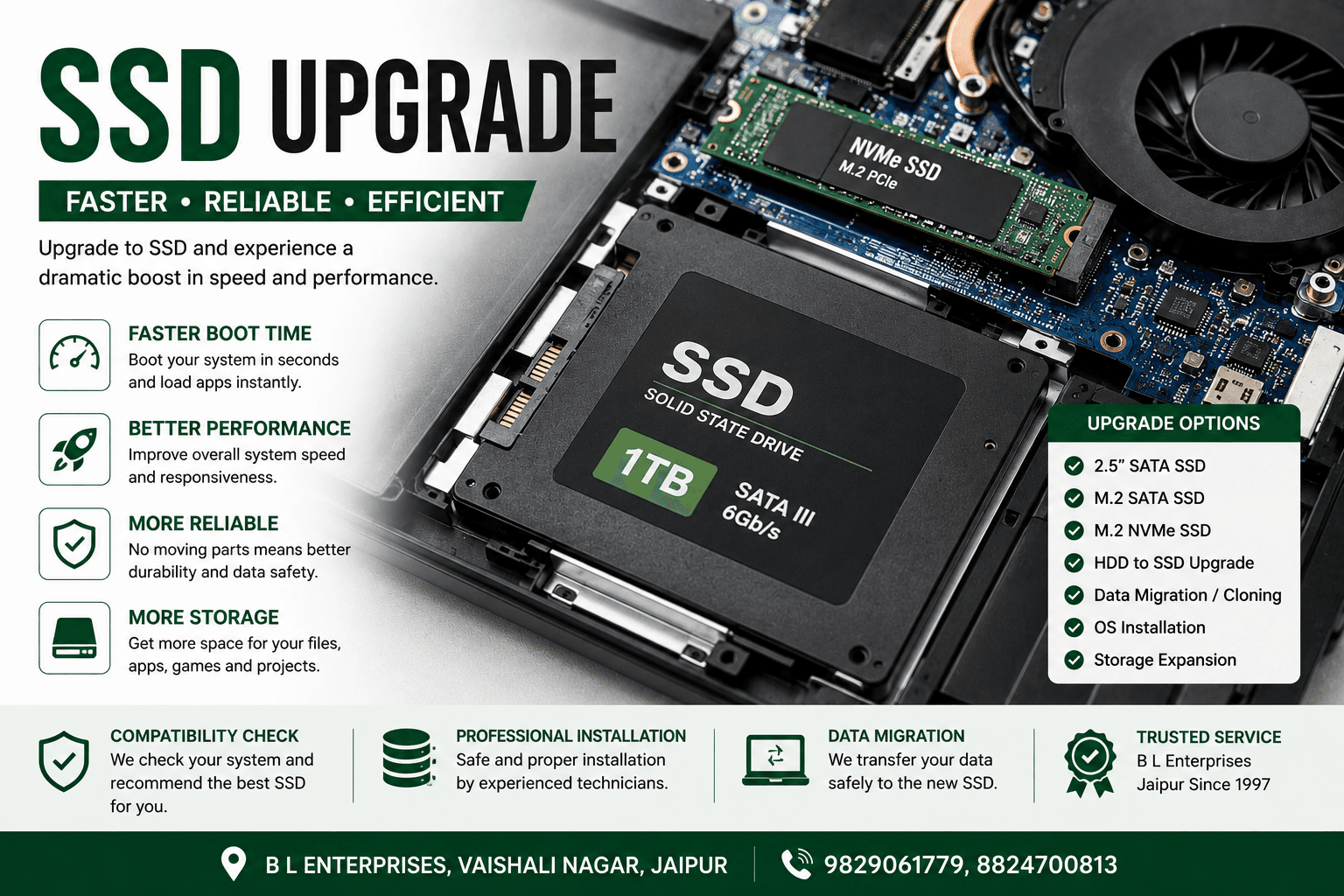
Storage has a major impact on how quickly a computer starts, opens applications, accesses files, and performs everyday tasks. If your laptop or desktop still uses an older mechanical hard drive, moving to a compatible SSD can provide a substantial improvement in storage responsiveness. B L Enterprises checks your system first and recommends a suitable SSD based on compatibility, capacity, performance requirements, and budget.
These symptoms can indicate that your current storage is limiting system performance.
If your computer takes a long time to start Windows or reach the desktop, an older hard drive may be limiting system responsiveness.
Applications can take longer to open when the system relies on a slower mechanical hard drive.
Long loading times, delays when opening files, and slow general responsiveness can be signs that storage performance is holding the system back.
Aging hard drives can develop performance and reliability problems. Important data should be backed up before a drive shows signs of failure.
A storage upgrade can provide additional space for applications, documents, projects, media, games, and other files.
Systems that constantly experience high disk activity may benefit from faster storage, although the actual bottleneck should be identified first.
From selecting the right SSD to installation, migration, and post-upgrade testing.
Replace an older mechanical hard drive with a compatible SSD to improve storage performance and overall system responsiveness.
Why it matters: SSDs have no moving mechanical parts and can provide substantially faster storage access than traditional hard drives.
We assess and install compatible 2.5-inch SATA SSDs in supported laptops and desktops.
Why it matters: SATA SSDs are a practical upgrade for many older systems that cannot use modern NVMe storage.
For compatible systems, NVMe SSDs can provide significantly higher storage performance through supported PCIe interfaces.
Why it matters: NVMe compatibility depends on the laptop or motherboard, available M.2 slot, supported interface, and other hardware specifications.
We install the selected SSD and check the physical connection, recognition, and basic system functionality after installation.
Why it matters: Correct installation helps ensure the drive is properly connected and recognized by the system.
A fresh Windows installation can be performed on a newly installed SSD when a clean system setup is preferred.
Why it matters: A clean installation can provide a fresh operating environment without carrying unnecessary software or old system files.
Where technically appropriate, existing system data can be migrated or cloned from the old drive to the new SSD.
Why it matters: Proper migration can help preserve applications, files, and the existing operating environment while moving to faster storage.
Additional SSD storage can be assessed for systems that support multiple drives or additional storage interfaces.
Why it matters: A secondary SSD can provide more space without necessarily replacing the existing storage device.
The installed SSD can be checked for recognition, available capacity, basic health indicators, and expected system operation.
Why it matters: Testing helps confirm that the new storage is functioning correctly after installation.
When storage is the performance bottleneck, an SSD can make a noticeable difference in everyday computer use.
Different laptops and desktops support different storage interfaces and physical formats.
An SSD should be selected according to the computer's supported interface, physical space, and hardware configuration.
Faster storage can be useful across many types of computer use.
An SSD can improve everyday responsiveness when opening documents, launching applications, starting Windows, and working with files.
Faster storage can improve project loading, source-code access, development environments, and other disk-intensive workflows.
An SSD can reduce game loading times and improve the responsiveness of storage-heavy game installations.
Fast storage can help with application loading and working with large project files, media, and assets.
Large datasets, development environments, models, and project files can benefit from faster storage access.
For general users, moving from an older HDD to an SSD can make everyday computer use feel considerably more responsive.
| Feature | HDD | SSD |
|---|---|---|
| Moving Parts | Yes | No |
| Typical Sequential Read Speed | ~80–160 MB/s | SATA SSD: ~450–550 MB/s NVMe PCIe 3.0: ~2,000–3,500 MB/s NVMe PCIe 4.0: ~5,000–7,500 MB/s NVMe PCIe 5.0: ~10,000–14,000+ MB/s |
| Responsiveness | Slower | Faster |
| Boot & Application Loading | Generally slower | Generally faster |
| Mechanical Wear | Has mechanical components | No mechanical moving parts |
| Storage Technology | Magnetic platters | NAND flash memory |
| SSD Generations | — | SATA → NVMe PCIe 3.0 → PCIe 4.0 → PCIe 5.0 |
| Power Consumption | Generally higher | Generally lower |
| Noise | Mechanical noise possible | Silent |
SATA SSDs use the SATA interface, while NVMe SSDs communicate through PCIe for substantially higher bandwidth. PCIe 3.0, 4.0 and 5.0 represent successive interface generations with increasing theoretical throughput. Actual performance depends on the SSD controller, NAND, thermals, workload, and system support.
For operating systems, applications, gaming, and everyday performance, an SSD is generally the better choice. HDDs can still be useful when you need large amounts of storage at a lower cost, especially for backups and bulk data.
Speed figures are approximate sequential-read ranges and vary by drive model, interface, workload, thermals, and system configuration.
SSD compatibility and installation options depend on the exact computer model.
Computer hardware and IT support in Jaipur since 1997.
B L Enterprises has been providing computer hardware and IT services since 1997.
Experience with laptop and desktop storage, upgrades, repairs, and custom computer systems.
We check the system's storage interface and hardware configuration before recommending an SSD.
Local laptop, desktop, and IT support from our base in Vaishali Nagar, Jaipur.
An SSD can significantly improve boot times, application loading, file access, and general responsiveness when the existing hard drive is the storage bottleneck.
Many laptops support replacing a 2.5-inch SATA hard drive with a SATA SSD. The exact laptop model and storage interface should be checked before selecting the drive.
SATA and NVMe SSDs use different interfaces and protocols. NVMe SSDs generally offer much higher potential storage performance, but the computer must support the appropriate M.2 or PCIe interface.
Where the hardware and software configuration allow it, an existing system can be migrated or cloned to the new SSD. A clean Windows installation can also be considered.
An SSD upgrade does not inherently require data loss, but the migration method matters. Important files should always be backed up before storage replacement or migration.
It depends on your computer. If the system does not support NVMe, a SATA SSD may be the appropriate choice. Compatible newer systems may support M.2 NVMe drives.
The appropriate capacity depends on your applications, files, games, projects, and expected future storage requirements. Common capacities include 500GB, 1TB, 2TB, and larger options.
Yes. B L Enterprises provides SSD assessment, installation, HDD-to-SSD upgrades, storage expansion, and data migration support in Jaipur.
Contact B L Enterprises to check your laptop or desktop's storage compatibility and explore an SSD upgrade in Jaipur.